


ChangeFace.ai
AI-powered face swapping in photos—no Photoshop needed.
What is ChangeFace.ai?
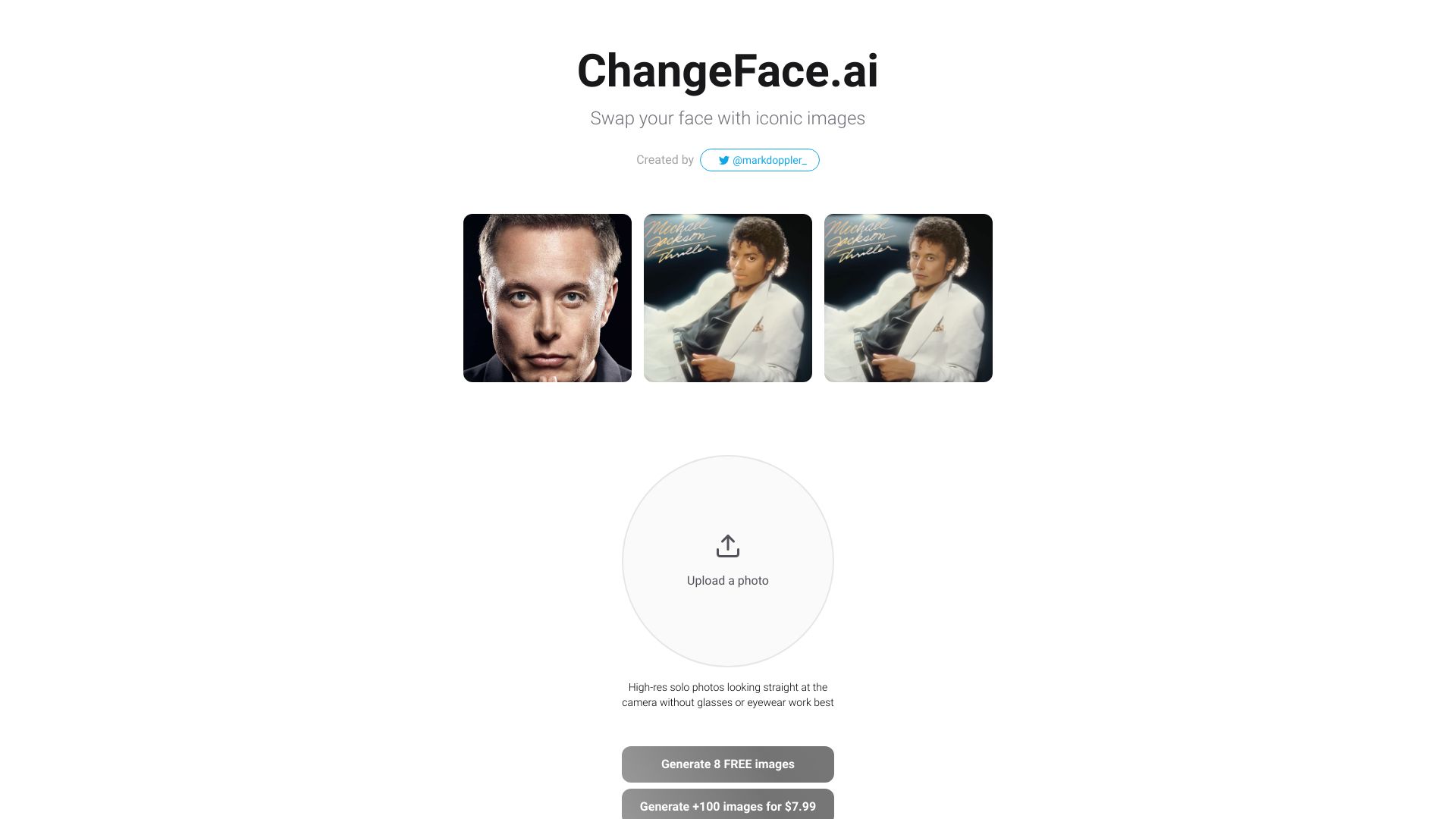
ChangeFace.ai is an online AI face swap tool that replaces a face in a target photo with a face from a separate source image. You simply upload two photos—the image you want to edit and the face you want applied—and the service generates a realistic composite at a fixed ultra quality setting. It is designed as a fast, no-experience alternative to manual Photoshop compositing, letting non-designers produce natural-looking face swaps without touching layers, masks, or color curves. The tool automates the most complex parts of face swapping: it aligns facial landmarks, adapts skin tone, and blends edges automatically so the replacement face matches the target image's pose, lighting, and expression. It handles different angles and lighting conditions reasonably well, though input quality matters—clear, front-facing, evenly lit photos produce the most convincing results. For repetitive workflows, the simple upload-generate-download loop makes it easy to iterate quickly through multiple face options. ChangeFace.ai is aimed at content creators assembling social media visuals, marketers testing ad concepts, designers mocking up campaigns, and anyone who needs a quick realistic face replacement in a photo. The tool currently supports one face swap per generation, so group photos require cropping and re-running, and it offers fewer fine-tuning controls than professional compositing packages. It is best for users who value speed and ease of use over granular editing control.
SpecificationsAI-estimated
Key Features of ChangeFace.ai
Use Cases for ChangeFace.ai
Social Media Visuals
Create engaging profile pictures, social posts, or campaign visuals by swapping in different faces without manual photo editing.
Marketing Ad Concept Testing
A/B test ad concepts by generating multiple face variations of the same visual quickly and comparing the results.
Design Mockups
Mock up campaign imagery for clients or stakeholders by replacing faces in concept photos before final production.
Fixing Group Photos
Replace a blinked, off-expression, or unwanted face in a group shot by swapping in a better source face.
Personalized Content
Produce personalized images for clients, audiences, or campaign testers by applying different faces to a template photo.
Content Variation at Volume
Generate multiple face-swapped versions of a visual at volume without rebuilding layers or redoing manual composites.
How to use ChangeFace.ai?
Upload Your Target Image
Upload the photo you want to edit (the Input Image). This is the image whose face will be replaced. Use a well-lit photo where the face is clearly visible and not obscured by hair, accessories, or shadows.
Upload Your Source Face
Upload a photo of the face you want applied (labeled 'Your Face' in the tool). Choose a clear, front-facing photo with even lighting for the most natural blend with the target image.
Click Generate
Hit Generate to start the AI face swap. The tool processes both images at an ultra quality setting, aligning facial features, matching skin tones, and blending edges automatically.
Download the Result
Preview the output and download your face-swapped image. If the result needs refinement, try re-running with a different source face photo or a target image with better lighting and angle alignment.
Pros & Cons of ChangeFace.ai
Pros
- Extremely easy to use: no editing or design skills required
- Fast iteration for testing multiple face options quickly
- Automatic skin tone adaptation, feature alignment, and edge blending
- No installation or software setup—works entirely in the browser
- Built-in troubleshooting guide covers common generation issues
Cons
- Only one face swap per generation—group photos require cropping and re-running the tool for each face
- Output quality is fixed at ultra quality with no user-adjustable settings
- Results depend heavily on input image clarity, face angle, and lighting; poor inputs can produce blurry or distorted swaps
- No fine-grained manual controls for masks, edges, or color curves
Frequently Asked Questions
What images do I need to upload to use the Change Face tool?
You need two images: an Input Image (the photo whose face you want to replace) and a Your Face image (the face you want applied). Both fields are required—the tool cannot process without both uploads.
What kind of source face photo produces the best results?
Use a clear, front-facing photo with good, even lighting where the face is fully visible and not covered by hair, hats, sunglasses, or shadows. Higher-resolution images with the face filling a large portion of the frame give the AI more detail to work with and produce more realistic swaps.
Can I adjust the output quality setting?
The quality is fixed at ultra quality and cannot be changed by the user. Every generation runs at this setting automatically, so no manual quality configuration is needed.
Does the tool handle differences in lighting between the two photos?
The AI applies automatic lighting and skin tone adaptation to blend the swapped face with the target image. However, results are most natural when the lighting direction and color temperature are roughly similar between both photos. Strong mismatches can produce visible inconsistencies.
Can I swap multiple faces in a group photo?
The tool processes one face swap per generation. To replace multiple faces in a group photo, crop the image to isolate each face you want changed, run separate generations, and composite the results. Alternatively, run the full image multiple times with different source faces if the AI targets the correct face each time.
Is it legal to use AI face swap tools?
Face swap technology itself is generally not illegal in most jurisdictions, but how you use it determines legality. Always obtain consent from the person whose face you are using, do not create misleading or harmful content, and check your local laws regarding synthetic media and likeness rights. Regulations such as the EU AI Act and various US state laws increasingly require disclosure of AI-manipulated content.
What should I do if the output looks unrealistic or 'off'?
The most common cause of unrealistic output is a mismatch between the source and target images. Try using a source face with a similar head angle, lighting direction, and expression to the target photo. Also ensure neither image is heavily filtered, compressed, or low resolution. A visible, front-facing target face will help the AI align correctly.
How many output images does each generation produce?
Each generation produces one output image per run. If you want to test multiple face variations, run the tool again with a different source face photo.
Reviews & Ratings0.0
No reviews yet. Be the first to write one!
Top Alternatives & Similar Software
View all alternatives & similar software→No alternatives available yet.
People also viewed



Related searches
Is this your tool?
Claim this page to update details, reply to user reviews, and drive more traffic to your product.
Claim this Product →
Tags
Explore Related Topics
Keep up with ChangeFace.ai alternatives
New alternatives, pricing changes and the week's biggest movers - one email every Tuesday.