


VideoUpscaler
Upscale and enhance videos in your browser with AI, no uploads.
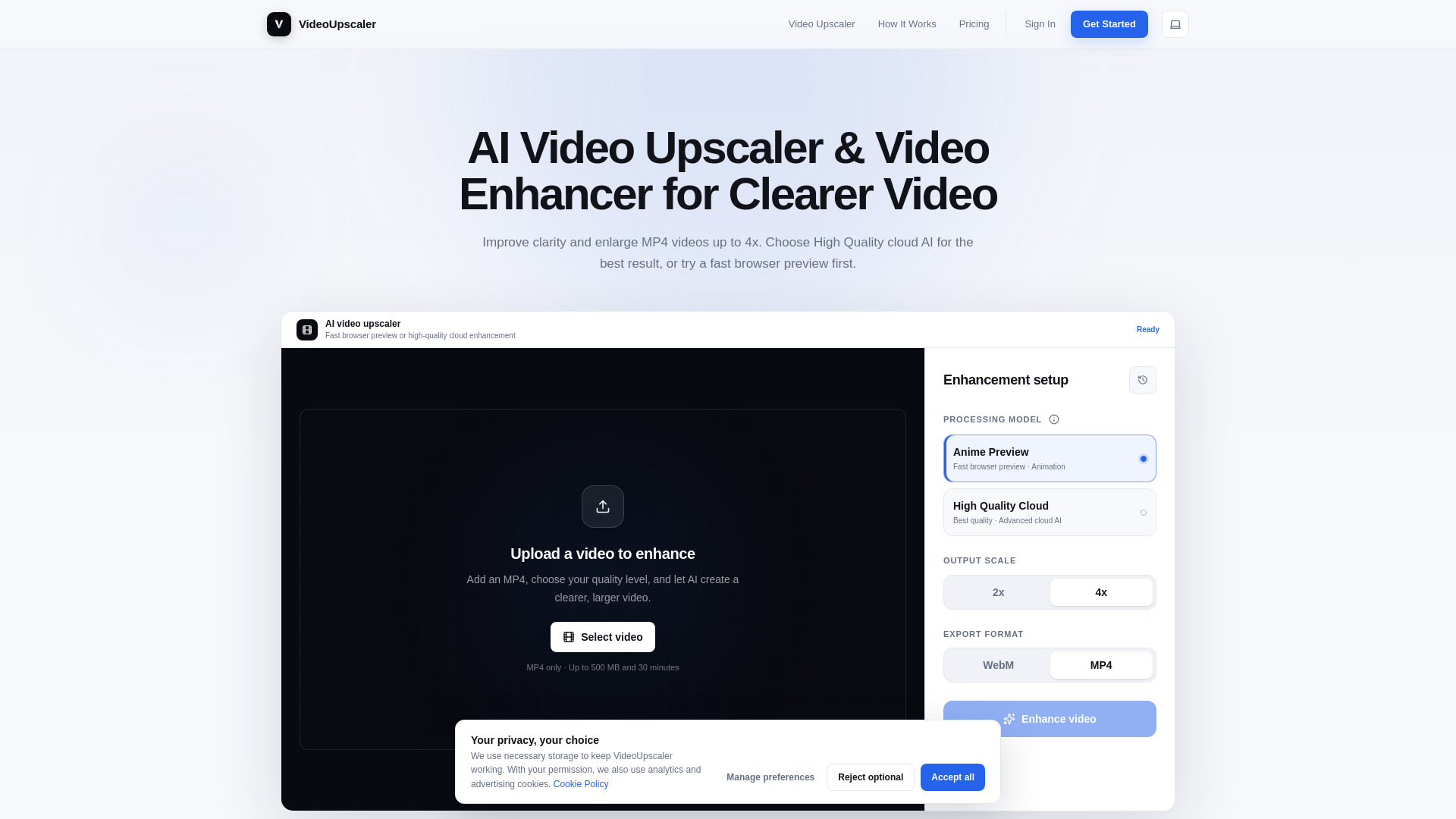


What is VideoUpscaler?
VideoUpscaler is a free AI-powered video upscaler and enhancer that runs entirely in your browser. It allows users to enlarge videos by 2x using three AI models (Small, Medium, Large), trim sections, compare before/after results, and download the enhanced video as MP4 or WebM. All processing happens locally on the user's device, ensuring privacy and no uploads. It supports common formats like MP4, MOV, WebM, and MKV, with features such as local processing, no account required, and the ability to enhance selected sections.
SpecificationsAI-estimated
Key Features of VideoUpscaler
Use Cases for VideoUpscaler
Upscale old or low-resolution videos
Improve the resolution of legacy footage or webcam recordings by 2x, making them suitable for larger displays.
Enhance video quality for social media
Sharpened details in short clips before uploading to platforms like YouTube, Instagram, or TikTok.
Improve blurry surveillance or screen recordings
Reduce pixelation and enhance text or faces in recorded clips, though not a perfect fix for heavy blur.
Privacy-sensitive projects
Enhance and share videos without uploading them to third-party servers, keeping sensitive content confidential.
How to use VideoUpscaler?
Add a video
Choose a video or drop it into the workspace. Supported formats: MP4, MOV, WebM, MKV (if browser supports the codecs).
Trim your clip
Drag the timeline handles or enter start and end times to select the section you want to enhance.
Choose the quality
Start with Medium. Use Small for faster processing and lower GPU memory, or Large for more detail (requires more memory).
Enhance and download
Click Enhance and keep the tab open. Compare with the slider, then download the result as MP4 or WebM.
Pros & Cons of VideoUpscaler
Pros
- Runs entirely in the browser with no uploads, ensuring privacy
- Free to use
- Three AI models to balance speed and quality
- Trim videos to enhance only selected sections
- Comparison slider to preview before downloading
- Output as MP4 or WebM with audio support
Cons
- Requires a modern browser with GPU acceleration
- Processing time can be long for large videos or higher quality settings
- Limited to 2x upscaling, may not reach 4K for smaller sources
- Cannot fully fix heavily blurry or compressed footage
- Browser codec support may limit format compatibility
Frequently Asked Questions
Which quality should I choose?
Start with Medium. Small is faster and uses less GPU memory; Large needs more memory and may preserve more detail. Test a short clip first.
Can I upscale a video to 4K?
The models upscale by 2x. A 1920x1080 source can reach 3840x2160 if your device and selected model support it. Smaller sources will stay below 4K.
Can I enhance just part of a video?
Yes, you can select a section on the trim timeline before processing. Longer clips take more time and storage.
Can AI fix a very blurry video?
It may improve the look, but strong blur and compression can remain. Check faces, text, and motion before using the result.
Which video formats are supported?
MP4, MOV, WebM, and MKV can work if your browser supports the codecs. If issues, try H.264 MP4 with AAC audio. Downloads use MP4 or WebM.
Is my video uploaded?
No. Your browser processes the video on your device. No account needed, but an internet connection is required to load the app and AI models.
How long does enhancement take?
Depends on clip length, output size, model, and GPU. Keep the tab open. If too long, try Small or a shorter section.
Will my original video change?
No, you download a separate enhanced file. The source remains unchanged.
Can I change settings after processing?
Yes, adjust trim or model while keeping the current result, then click Enhance again. Starting a new run clears the previous result.
Why won't my video process?
Check the error shown. Try Small, a shorter clip, or an H.264 MP4 with AAC audio. Use an updated Chrome or Edge with graphics acceleration.
Pricing Overview
View full pricing →VideoUpscaler is a free, browser-based AI video upscaling tool that requires no account and processes videos locally on the user's device, with no paid tiers or prices listed on the page.
Detailed plans are not listed. Visit the official website for pricing information.
Reviews & Ratings0.0
No reviews yet. Be the first to write one!
Top Alternatives & Similar Software
View all alternatives & similar software→No alternatives available yet.
People also viewed


Related searches
Is this your tool?
Claim this page to update details, reply to user reviews, and drive more traffic to your product.
Claim this Product →
Tags
Explore Related Topics
Keep up with VideoUpscaler alternatives
New alternatives, pricing changes and the week's biggest movers - one email every Tuesday.