



CaptionCreator
An AI subtitle generator that automatically transcribes and translates videos into captions in 76 languages in under 3 minutes.
What is CaptionCreator?
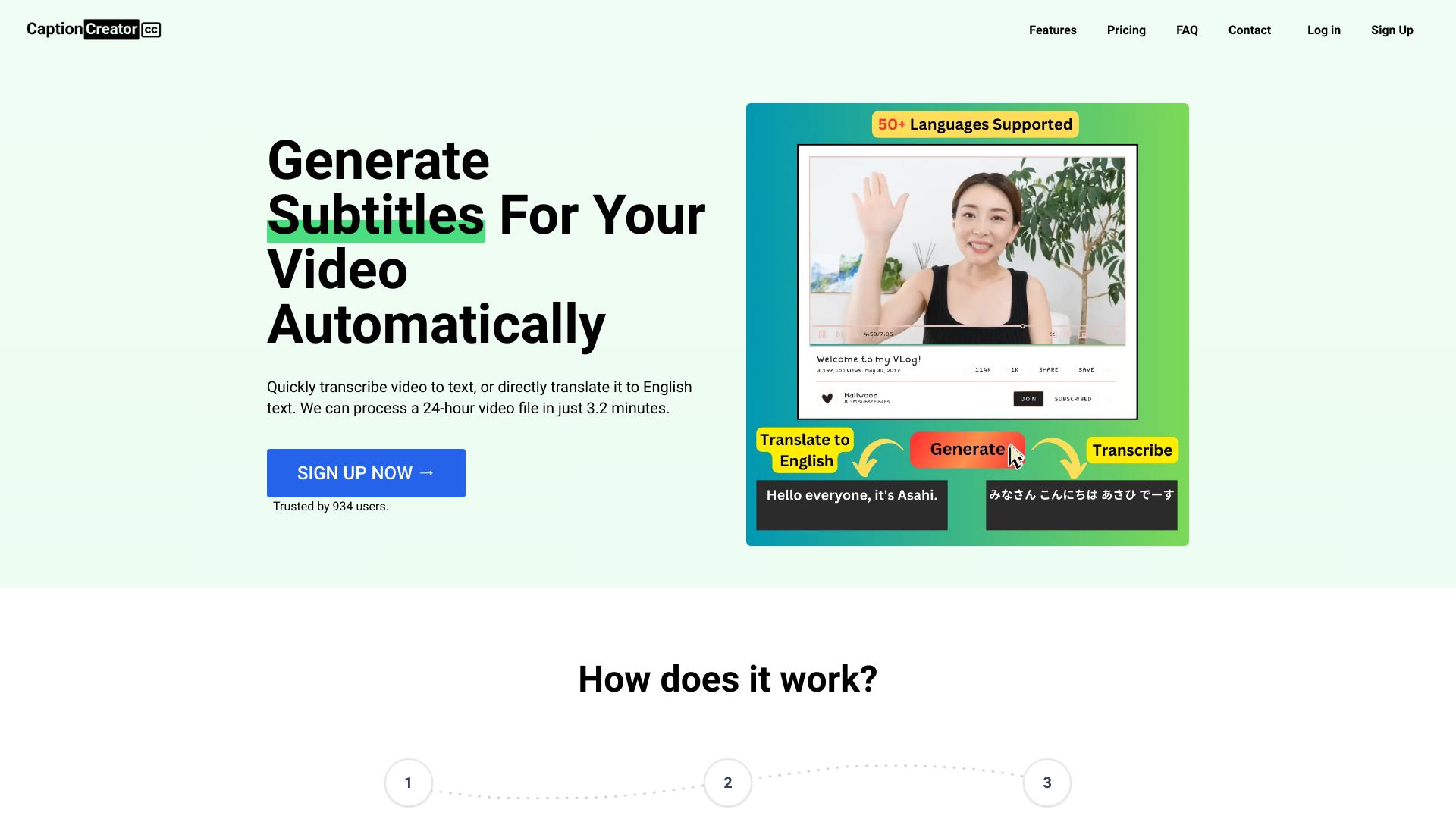
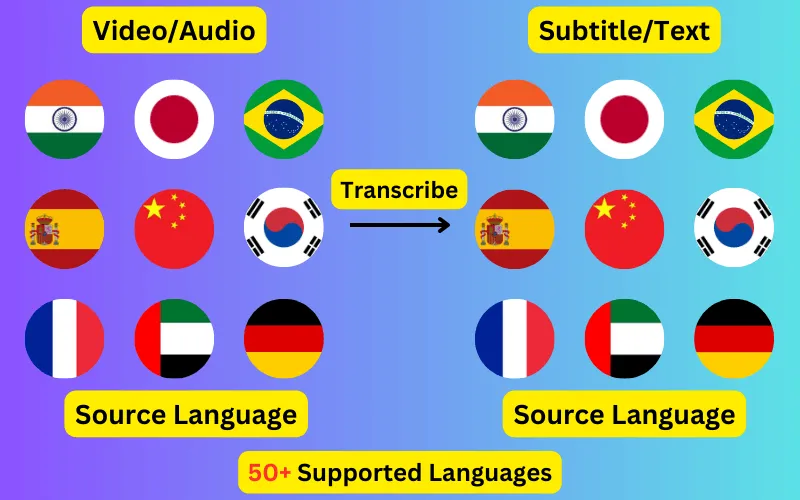
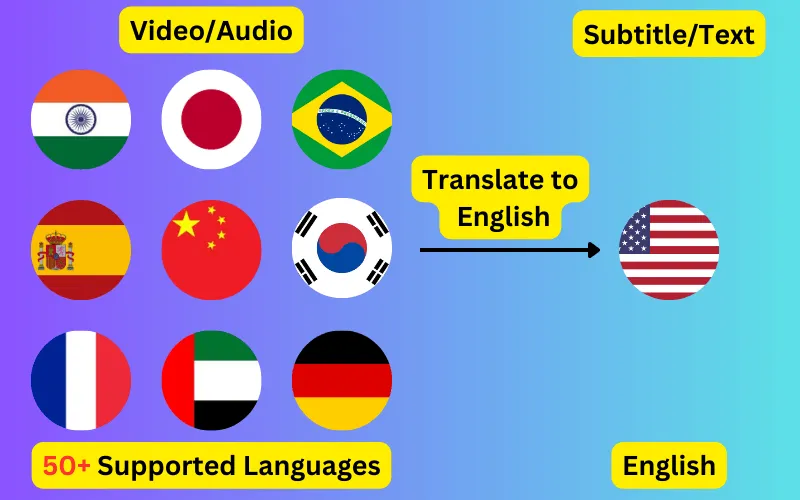
CaptionCreator is an AI-powered web tool that automatically generates subtitles for your videos. Instead of manually timing captions, you simply upload a video or audio file and the service transcribes the spoken content into clean, ready-to-use subtitles. It also supports translation, letting you turn a single video into subtitles in dozens of languages without needing a separate translation workflow. The tool offers two main modes: Transcribe and Translate. Transcribe converts speech into subtitles or plain text in 76 supported languages, while Translate converts the audio or video into subtitles in any supported language. You can then burn the subtitles directly into the video, edit them in the built-in studio, or export them as SRT, VTT, or plain text files. Because only the audio track is uploaded, there is no video size limit, and the company says any length of video can be processed in under three minutes. CaptionCreator is aimed at content creators, social media managers, educators, and video editors who need fast, multilingual captioning. It offers a free tier for short clips, plus two monthly subscription plans: Basic at $10/month for 300 minutes of transcription/translation and Pro at $25/month for 1,000 minutes. Paid plans include no watermarks, 4K quality support, and access to all subtitle styles and editing features.
SpecificationsAI-estimated
Key Features of CaptionCreator
Use Cases for CaptionCreator
Social media captioning
Add engaging subtitles to short-form videos for TikTok, Instagram Reels, and YouTube Shorts.
Content localization
Automatically translate video content into multiple languages to reach international audiences.
Editing workflows
Generate SRT or VTT files to import into professional video editing software.
Podcast and meeting transcription
Convert podcast episodes, interviews, or meeting recordings into readable text transcripts.
Accessibility captions
Make video content more accessible by adding accurate captions for deaf and hard-of-hearing viewers.
Marketing videos
Add subtitles to marketing videos, ads, and product demos to improve viewer retention.
Educational content
Create translated subtitles for online courses, webinars, and tutorial videos.
How to use CaptionCreator?
Upload your file
Go to the CaptionCreator website and select or drag and drop a video or audio file into the upload area. MP4, MOV, MKV, WebM and common audio formats are supported.
Select language and mode
Choose the input language of your audio/video and select the mode: Transcribe to create subtitles in the original language, or Translate to convert into another language.
Pick target language (for translation)
If you chose Translate, pick the target language from the 76 supported languages.
Review and edit subtitles
After processing, review your subtitles in the studio. You can edit the text, timing, and styling as needed.
Export or burn subtitles
Export the subtitles as SRT, VTT, or plain text, or burn them into the video if you want them baked into the final file.
Pros & Cons of CaptionCreator
Pros
- Supports 76 languages for both transcription and translation
- Processes videos of any length in under 3 minutes
- Free tier available without an account
- No video size limit because only audio is uploaded
- No watermarks on paid plans
Cons
- Monthly credits expire and do not roll over, so unused minutes are lost at the end of the month
- Free tier is limited to 120-second files and only 3-5 files per day
- No lifetime or perpetual pricing option is mentioned; paid access is subscription-based
- Remaining credits are deleted if you delete your account
Frequently Asked Questions
Is CaptionCreator free?
There's a free tier: 3 files of up to 120 seconds per day without an account, and 5 files a day with a free account. Longer files and higher volume need a plan, which gives you 300 or 1,000 credits every month from $10. You can cancel any time.
How many videos can I process?
On the free tier, you can do 3 videos a day without an account and 5 a day with one, each up to 120 seconds. Beyond that it depends on your credits — each credit covers one minute of video or audio, and there's no daily limit on paid plans.
How long does it take to generate subtitles?
Videos of any length can be completed in under 3 minutes.
Do credits expire?
Your plan's credits are good for the month they're added and don't roll over — a fresh batch arrives at the start of each month. Credits bought as one-off packs before 7 August 2026 have no expiry and stay usable. Expired credits can't be restored or refunded, and if you ask for your account to be deleted, any remaining credits are deleted with it.
How do I delete my account?
Send an email from the same email address you used to sign up to [email protected].
Is CaptionCreator accurate?
The service uses the latest AI model behind the scenes, so you get the best quality transcription and translation results.
What video and audio formats are supported?
CaptionCreator supports MP4, MOV, MKV, WebM and all common audio formats. Videos have no size limit because only the audio is uploaded.
Can I export subtitles to use in another editor?
You can export subtitles as SRT, VTT, or plain text, or burn them directly into the video.
Reviews & Ratings0.0
No reviews yet. Be the first to write one!
Top Alternatives & Similar Software
View all alternatives & similar software→

People also viewed



Related searches
Is this your tool?
Claim this page to update details, reply to user reviews, and drive more traffic to your product.
Claim this Product →
Explore Related Topics
Keep up with CaptionCreator alternatives
New alternatives, pricing changes and the week's biggest movers - one email every Tuesday.